PDF Password Protector: How to Secure PDF Files with Encryption
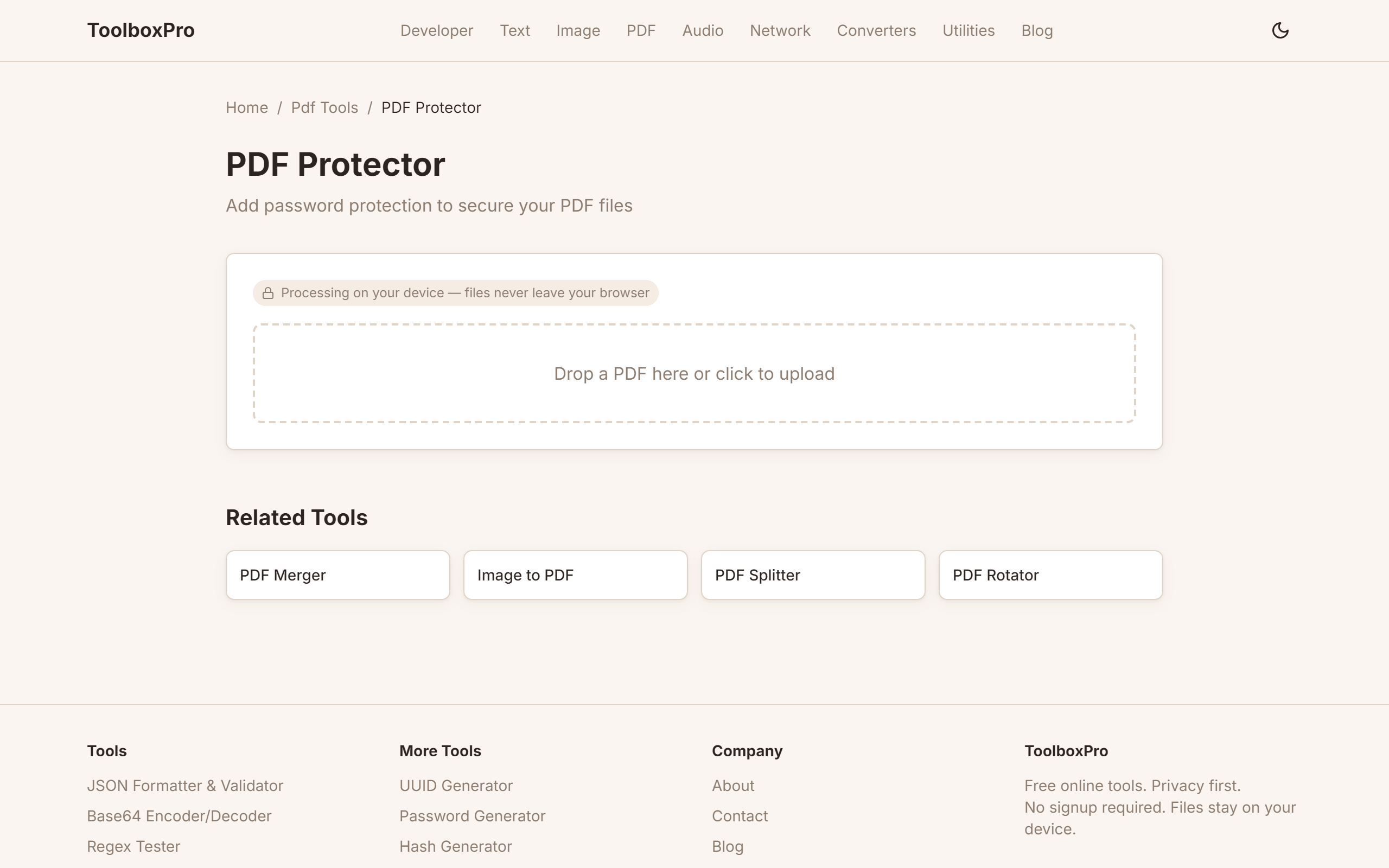
Add passwords and encryption to your PDF files. Protect sensitive documents with user and owner passwords for complete security.
Why Password-Protect a PDF?
You have a confidential report, a legal contract, or a client proposal. Email attachments can be intercepted. Cloud storage can be breached. Adding a password to your PDF ensures that only authorized people can open it.
PDF password protection offers two levels of security:
How PDF Encryption Works
PDF encryption uses industry-standard algorithms:
| Algorithm | Key Length | Security Level |
|---|---|---|
| AES-128 | 128-bit | Strong — suitable for most documents |
| AES-256 | 256-bit | Very strong — government/enterprise grade |
| RC4 (legacy) | 128-bit | Deprecated — avoid for new documents |
ToolboxPro uses AES-256 encryption by default, the same standard used by banks and governments.
What Encryption Protects
What Encryption Does NOT Protect
How to Password-Protect a PDF
Step 1: Upload Your PDF
Visit our PDF Protector and upload your file. The tool accepts:
Step 2: Set Your Passwords
#### User Password (Open Password)
This password is required to open the PDF. Choose:
#### Owner Password (Permissions Password)
This password controls what users can do with the document:
| Permission | When Restricted |
|---|---|
| Printing | Prevent physical copies |
| Copying text/images | Prevent content extraction |
| Editing | Prevent modifications |
| Adding annotations | Prevent comments and markup |
| Form filling | Prevent form submission |
If restricted, the user still needs the owner password to enable these actions.
Step 3: Choose Encryption Level
| Setting | Best For |
|---|---|
| AES-128 | General use, compatibility with older PDF readers |
| AES-256 | Maximum security, newer PDF readers (Adobe Acrobat 7+) |
Step 4: Download Your Protected PDF
Click Protect PDF. The file processes in your browser and downloads automatically as a password-protected PDF.
Strong Password Tips
Do NOT Use
DO Use
Password Strength Reference
| Length | Time to Crack (brute force) |
|---|---|
| 6 chars | Instant |
| 8 chars | A few hours |
| 10 chars | A few months |
| 12 chars | Thousands of years |
| 16 chars | Millions of years |
Removing PDF Protection
If you have the owner password, you can also remove protection:
1. Upload the protected PDF
2. Enter the owner password
3. Click Remove Protection
4. Download the unlocked PDF
This is useful when:
Compatibility
Protected PDFs work with:
Important: Some free PDF readers have limited support for 256-bit AES. If your recipients use older software, choose AES-128.
FAQ
Can I recover a lost PDF password? No. PDF encryption is designed to be irreversible without the password. There is no backdoor. Keep your passwords in a password manager.
Does password protection compress the file? No — encryption adds a small amount of overhead (a few KB) but does not compress the content. If you need a smaller file, compress the PDF first, then protect it.
Is it safe to upload sensitive PDFs online? Our tool processes everything in your browser using PDF-lib WebAssembly. Your file never reaches any server. For maximum security, you can also use the tool offline by saving the page before disconnecting from the internet.
Can I add a password to a PDF I already encrypted? Yes — but you'll need the existing password to remove protection first, then apply a new password.
What's the difference between PDF passwords and digital signatures? A password restricts access. A digital signature verifies authenticity and integrity. For sensitive documents, use both.
Encryption Types Compared
Choosing the right encryption standard affects both security and compatibility. Here's a detailed breakdown:
| Feature | RC4 (Legacy) | AES-128 | AES-256 |
|---|---|---|---|
| **Key Length** | 40–128-bit | 128-bit | 256-bit |
| **Security** | Broken — vulnerable to attacks | Strong | Very strong |
| **Adoption** | Deprecated, old PDFs only | Universal (PDF 1.5+) | Modern (PDF 1.7 Ext. Level 3+) |
| **Performance** | Fastest | Fast | Slightly slower (negligible) |
| **Best For** | Nothing — avoid | General business documents | Highly sensitive/legal documents |
| **Reader Support** | All readers | All modern readers | Adobe Acrobat 7+, most modern readers |
Recommendation: Always default to AES-256 for new documents. The only reason to drop to AES-128 is if recipients use ancient PDF readers (pre-2010) that don't support 256-bit encryption. RC4 should never be used for new files — it has known cryptographic weaknesses.
User Password vs. Owner Password: Key Differences
| Aspect | User Password | Owner Password |
|---|---|---|
| **Purpose** | Opens and views the document | Changes permissions (print, copy, edit) |
| **Who needs it** | Anyone who should read the PDF | The document author/administrator |
| **Without it** | Can't open the file at all | Can view but can't perform restricted actions |
| **Common scenario** | Sharing a confidential report externally | Preventing employees from copying content |
A PDF can have both passwords set simultaneously. The user password lets recipients open and read; the owner password lets you (the author) unlock full permissions when needed.
Password Recovery Risks and Reality
PDF encryption is designed to be unbreakable without the password — there is no vendor backdoor. However, "recovery" is possible in specific scenarios:
When Recovery Might Work
1. Dictionary attacks on weak passwords — If the password is a common word or short pattern (under 8 characters), brute-force tools like hashcat or John the Ripper can crack it in minutes to hours. This is why strong passwords matter.
2. Owner password removal without the user password — Some tools can strip owner-level restrictions (print/copy locks) without knowing the owner password, because restriction enforcement happens in the PDF reader, not at the encryption level. The document content itself remains encrypted.
3. Known password reuse — If you use the same password across documents and remember it for a different file, it likely works here too.
When Recovery Is Impossible
Takeaway: There is no "forgot password" link for PDFs. Always store passwords in a password manager (1Password, Bitwarden, KeePass) at the moment you create them.
Enterprise Document Security Best Practices
Organizations handling sensitive PDFs at scale should implement layered security beyond simple password protection:
1. Password Policy Enforcement
Mandate minimum standards across the organization:
2. Combine Encryption with DRM
Passwords alone don't prevent a recipient from sharing an unlocked PDF. Enterprise DRM (Digital Rights Management) solutions like Adobe LiveCycle, Vitrium, or Locklizard add:
3. Secure Distribution Channels
Don't email password-protected PDFs with the password in the same email. Common secure patterns:
Common Mistakes to Avoid
1. Using AES-256 with an older PDF reader — Recipients using Adobe Reader 6 or earlier can't open AES-256 PDFs. Verify your audience's software before encrypting, or fall back to AES-128 for broader compatibility.
2. Setting only the owner password — Without a user password, anyone can open and read the document. The owner password alone only restricts actions like printing and copying — it doesn't prevent viewing.
3. Emailing the password with the document — If an attacker intercepts the email, they get both the locked PDF and the key. Always use a separate communication channel for the password.
Real-World Examples
Law Firm Sharing Settlement Documents
A law firm encrypts a settlement agreement with AES-256, sets a user password shared verbally with the client, and restricts printing and copying via the owner password. The client can read the document on any device but cannot redistribute or alter it.
HR Distributing Salary Reviews
An HR department password-protects individual salary review PDFs with each employee's unique PIN. Each file uses AES-128 (for compatibility with older company laptops) and restricts copying to prevent salary information from being pasted into other documents.
Comparison: PDF Protection Methods
| Method | Security Level | Prevents Viewing | Prevents Copying | Prevents Sharing | Cost |
|---|---|---|---|---|---|
| **Password (AES-256)** | High | Yes | Yes (owner pw) | No | Free |
| **DRM (Locklizard, Vitrium)** | Very High | Yes | Yes | Yes (revocation) | Paid |
| **Digital Signature** | Medium | No | No | No | Free–Paid |
| **Watermarking** | Low | No | No | Deters only | Free–Paid |
Recommendation: Password protection with AES-256 is sufficient for most use cases. For documents where redistribution prevention is critical (trade secrets, confidential client data), invest in a DRM solution rather than relying on passwords alone.
Try it yourself with our free online tool:
Try PDF Password Protector: How to Secure PDF Files with Encryption →