How to Preview and Test HTML Online in Real Time
Learn how to preview, test, and debug HTML code instantly in your browser with a free online HTML preview tool. Write, edit, and see results in real time without any setup.
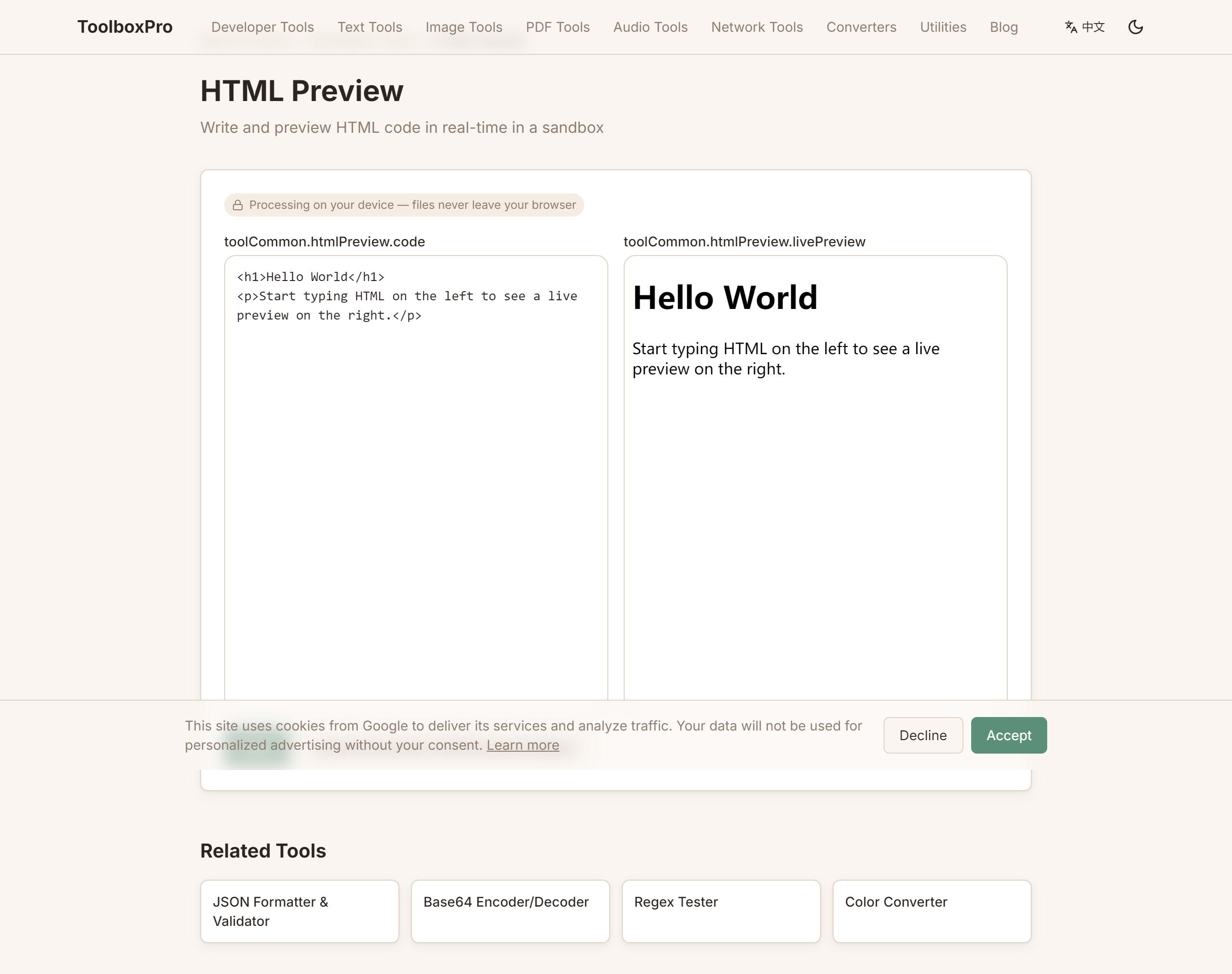
How to Preview and Test HTML Online in Real Time
HTML is the backbone of the web. Every webpage you visit — from a simple blog post to a complex single-page application — is rendered from HTML. Whether you're a beginner learning web development, a designer prototyping a layout, or a seasoned developer debugging a rendering issue, being able to preview HTML instantly is essential.
Instead of setting up a local server, creating files, and switching between editors every time you need to test a snippet, a real-time HTML preview tool lets you write, edit, and see results all in one place. This guide explores why live HTML preview matters, what features to look for, and how to get the most out of trytoolboxpro.com/tools/html-preview.
Why Live HTML Preview Changes Your Workflow
Previewing HTML in real time eliminates the edit-save-reload cycle that slows down front-end work. Here are the key benefits:
Instant feedback. Every keystroke updates the rendered output immediately. You can see how a \ Zero setup required. No need to install Apache, Nginx, or even a local dev server. No file system operations — just open the tool and start typing. This makes it ideal for quick experiments, prototyping UI components, and testing snippets from Stack Overflow or documentation sites. Safe sandbox. When you preview HTML in an online tool, the code runs in a sandboxed iframe. This means you can test experimental APIs, third-party embeds, or potentially unsafe markup without affecting your actual website or local environment. Cross-device access. An online preview tool works on any device with a browser — your laptop, tablet, or even your phone. This is invaluable when you need to test responsive layouts on different screen sizes without cloning a repo everywhere. Not all HTML previewers are created equal. Here's what separates a powerful tool from a basic one: Our tool at /tools/html-preview includes all of these features and runs entirely in your browser — no data is sent to any server. Using an online HTML previewer is straightforward. Here's a step-by-step guide using ToolboxPro's HTML Preview tool. #### Step 1: Open the Tool Navigate to the HTML Preview tool at trytoolboxpro.com/tools/html-preview. You'll see a split-screen interface: a code editor on the left and a live preview panel on the right. #### Step 2: Write Your HTML Start typing your HTML in the editor panel. The tool supports the full HTML5 specification, including semantic elements like Try this example to get started: As you type, the preview panel on the right updates instantly. No need to save or click a button — every character you type is reflected immediately. #### Step 3: Add CSS Styling Insert a This instant feedback loop is especially useful when fine-tuning responsive layouts. You can quickly test different flexbox configurations, grid templates, or media queries without the overhead of a full development environment. #### Step 4: Add JavaScript Interactivity Include a #### Step 5: Test Responsive Layouts Use the viewport toggle to switch between mobile, tablet, and desktop widths. This lets you verify that your responsive design works correctly across different screen sizes — all without resizing your browser window or using external tools. #### Step 6: Copy or Download Once you're happy with the result, use the copy button to grab the HTML to your clipboard, or download it as a Learning web development. Beginners can experiment with HTML tags, CSS properties, and JavaScript without installing any tools. The instant visual feedback accelerates learning — you see exactly what each tag and property does. Prototyping UI components. Designers and frontend developers can quickly mock up buttons, cards, navigation bars, or entire page layouts. Test how elements look and behave before committing them to a production codebase. Debugging HTML rendering issues. If a webpage looks wrong in production, paste the HTML into the preview tool to isolate the problem. Strip away backend templates and server logic — focus purely on the markup and styles. Testing code snippets from documentation. When a tutorial or Stack Overflow answer includes HTML code, paste it into the preview tool to see exactly what it produces. No need to create temporary files or set up a project. Sharing quick demos. Need to show a client or teammate a layout idea? Build it in the preview tool and share the downloaded HTML file. No environment setup required on their end. The HTML Preview tool processes everything locally in your browser using a sandboxed iframe. Your code is never sent to any server, making it safe to test proprietary layouts, internal tools, or sensitive markup. The sandbox also prevents malicious scripts from affecting your browser or accessing your data. A real-time HTML preview tool eliminates the friction of traditional web development workflows. No servers to set up, no files to manage, no reload cycles — just pure, instant feedback on your code. Whether you're learning HTML for the first time or prototyping a complex layout, the live preview approach saves time and makes development more enjoyable. Ready to try it? Head over to our HTML Preview tool and start building. Try it yourself with our free online tool:Key Features of a Great HTML Preview Tool
Feature Why It Matters Real-time rendering Output updates as you type, no manual refresh Syntax highlighting Colored markup makes errors easy to spot Separate HTML/CSS/JS panels Organize code and debug faster Responsive viewport toggle Preview how your HTML looks on mobile, tablet, and desktop Download / copy output Save or share your work instantly Dark mode Reduces eye strain during long coding sessions Console output See JavaScript errors and log messages without opening DevTools How to Use the HTML Preview Tool
, , , , and . You can also include inline CSS in tags and JavaScript in tags — everything renders together in the preview panel.<!DOCTYPE html>
<html lang="en">
<head>
<meta charset="UTF-8">
<meta name="viewport" content="width=device-width, initial-scale=1.0">
<title>My Page</title>
<style>
body { font-family: sans-serif; margin: 2rem; }
h1 { color: #2563eb; }
.card { border: 1px solid #ddd; padding: 1rem; border-radius: 8px; }
</style>
</head>
<body>
<h1>Hello, World!</h1>
<div class="card">
<p>This is a live preview of my HTML code.</p>
</div>
</body>
</html> block in the section to style your HTML. The preview updates in real time as you adjust colors, spacing, fonts, and layout. Try changing the color property on h1 or adjusting the border-radius — you'll see the changes appear the moment you type them. tag to add interactivity. The preview sandbox safely executes JavaScript, so you can test event listeners, DOM manipulation, and API calls. If there's a JavaScript error, the console output panel will display the error message — no need to open browser DevTools.<script>
document.querySelector('button').addEventListener('click', () => {
alert('Button clicked!');
});
</script>.html file. This is perfect for quickly sharing prototypes with teammates or saving snippets for future use.Common Use Cases
Privacy and Security
Conclusion
Blog